Alfa File Manager
- 2.6
- Rating
- 10.00K
- Installs
- Free
- Price
 Analysis by App-foxy
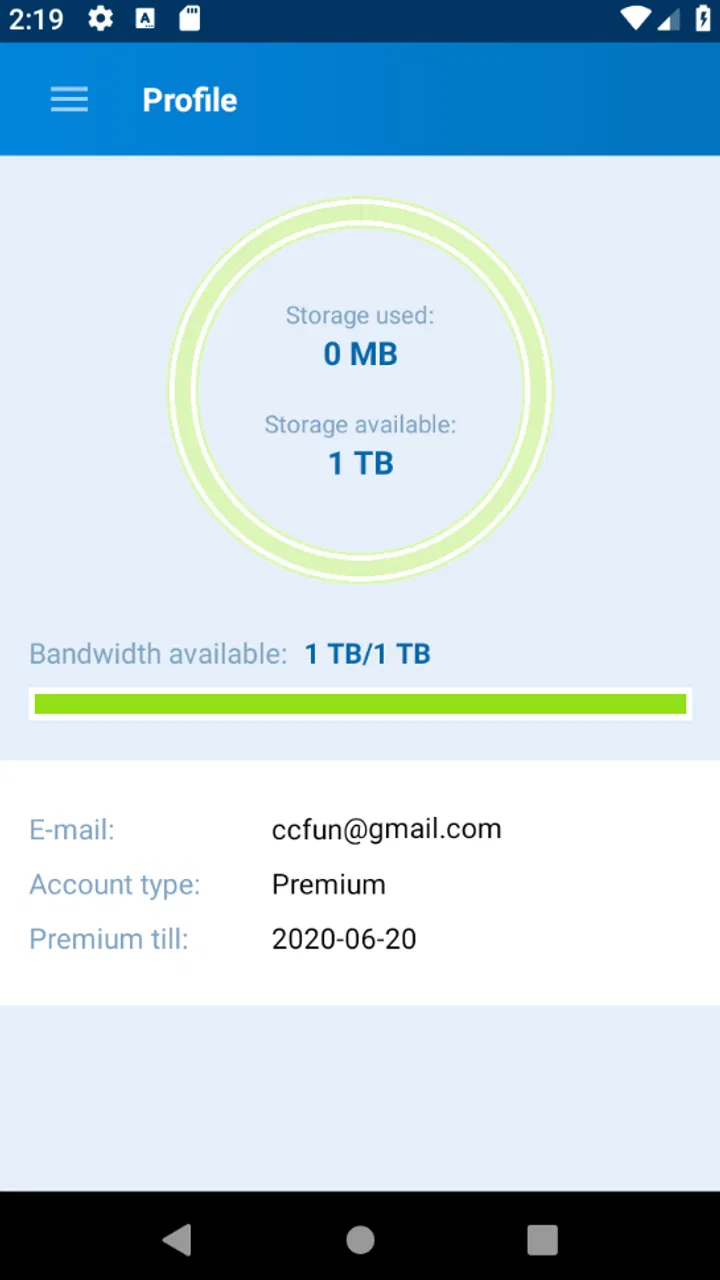
I approached Alfa File Manager as a communication app with a fairly focused purpose: managing and sharing files through alfafile.net from an Android device. That narrow role is important. This is not trying to replace every file tool on a phone, and it is not the kind of app I would install simply because I need a general-purpose folder browser. Its value depends on whether alfafile.net is already part of the way I store or exchange files.
In everyday use, the main appeal is convenience. Instead of moving between a mobile browser, a separate download location, and another sharing method, the app gives alfafile.net users a dedicated Android route. I can see why that would be useful when I need to handle a file away from a desktop. At the same time, the experience is more dependent on account access, network conditions, and the service itself than a conventional offline file manager would be.
Rapid apps is the developer behind the project. The app is free to install, is rated for Everyone, and is available for devices running Android six or later. Its current version is 0.2.7, while the project was released on May 25, 2020. Those details place it in the category of a lightweight, service-specific utility rather than a broad, constantly evolving operating-system replacement.
You May Also Like

 Blood Strike: 2.5 Anniversary
Blood Strike’s Loadouts Turn Every Drop Into a Tactical Gamble
A close look at Blood Strike’s custom loadouts: how fast access to signature weapons reshapes its battle royale rhythm, rewards preparation, and narrows the gap between fights.

 Pandora - Music & Podcasts
Pandora’s Music Is Easy to Start, but Harder to Recover
Pandora’s strength is its low-effort path from a seed to a station. Its weak spot is how much confidence it asks you to place in connection, setup, and quiet recovery.

 8 Ball Pool
 Is Built on Rivalries, Rematches, and Routine
A close look at the rivalries, rematches, shared routines, and unanswered safety questions that turn a quick pool match into a persistent mobile community.

 Samsung Music
’s Quiet Strength Is Playing What You Already Own
Its reach comes less from spectacle than from dependable access to a personal library. That simplicity is both the app’s strongest retention engine and its ceiling.

 AccuWeather: Weather Radar
AccuWeather Review: A Quick, Clear Forecast for Everyday Decisions
For everyday plans, the best forecast is the one you can understand quickly. AccuWeather makes rain timing, radar, and local conditions easy to act on, with a few trade-offs.

 Hill Climb Racing
Why Hill Climb Racing Still Turns Crashes Into One More Run
A tiny car, a bumpy hill and one more upgrade: Hill Climb Racing keeps resurfacing because its simple chaos makes every near-miss feel personal.
More From Our News Desk
View All News


Where the real friction appears first
I find the first friction is often deciding whether a problem belongs to the app or to the service it connects with. This section looks at how to make that distinction before changing settings or repeating a transfer, so the next steps stay focused on the cause rather than adding more variables.
Starting with the right expectation
The first place I would expect users to get stuck is the meaning of “file manager.” On Android, that phrase often suggests browsing internal storage, renaming folders, moving documents, opening media, and connecting several cloud services. Alfa File Manager is better understood as a mobile companion for alfafile.net. If I expected a complete replacement for the file app already on my phone, I would probably find the scope too limited.
That distinction also explains why the app may feel useful to one person and unnecessary to another. Someone who regularly receives or shares files through alfafile.net has a clear reason to try it. Someone who only wants to organize photographs, clean downloads, or copy documents between local folders will usually be better served by the file manager built into Android or by a broader storage utility.
The app’s communication category makes sense because the important task is getting files from one place to another. I would judge it less by how many local-storage tools it offers and more by whether it reduces the number of steps involved in accessing and sharing files hosted on the service. That is the practical test that matters here.
Why a failed first attempt may be misleading
When an upload, download, or share action does not work, it is tempting to blame the app immediately. In this case, several parts of the process can be involved: the Android device, the network, the alfafile.net account or file, and the destination application. A failure at any one of those points can look like an Alfa File Manager problem.
My first check would be simple: confirm that ordinary web pages load on the same connection, then try the same alfafile.net account in a browser. If the service itself is difficult to reach there, reinstalling the app is unlikely to solve anything. If the website works but the app does not, I would continue with device and app checks before deciding that the account or file is at fault.
Another easy mistake is choosing a file that is not actually available where I think it is. Android devices can expose files through several locations, including downloads, messaging folders, removable storage, and app-specific areas. A file visible in one application is not automatically available to every other application. Checking the file’s actual location and opening it locally first can save a surprising amount of time.
Sharing is a chain, not a single tap
Sharing a file is also more complicated than the final button suggests. Alfa File Manager may successfully prepare the file, while the receiving application, connection, or destination still causes the problem. I would test with a small, ordinary document before attempting a large archive or a file received from another app. That separates a basic workflow issue from a file-size, format, or destination issue without making the diagnosis confusing.
A useful habit is to keep the original file untouched until the transfer is clearly complete. If I move or rename the only copy before confirming the result, a failed attempt becomes harder to recover from. Keeping one local copy also gives me a clean comparison when I need to determine whether the uploaded or shared version is the correct file.
Setup checks that make the first session easier
Before I troubleshoot a failed task, I like to establish a simple baseline: confirm access to the service, locate a file I can safely test, and make sure the phone can handle it. The following section turns those checks into a short first-session routine, helping me tell a setup issue from a more persistent problem.
Begin with the service, not the settings menu
Before spending time inside the app, I would make sure I can sign in to alfafile.net and identify the file I want to manage. This sounds obvious, but it is one of the most useful setup checks for a service-specific tool. If I do not know whether the file is stored online, saved locally, or only visible through another application, I cannot tell whether the app is behaving correctly.
I would also note the Android requirement. The app supports Android six and later, so a compatible device is necessary before troubleshooting anything else. On a supported phone, I would make sure the operating system is not aggressively restricting the app in the middle of a transfer. Battery-saving behavior and background limits can interfere with tasks that take time, especially when I leave the app or the screen turns off.
I would not grant broad access casually. When Android asks for access related to selecting or handling a file, I would read the prompt and allow only what is needed for the task. If I deny something by mistake, I would revisit the app’s Android settings rather than repeatedly tapping the same control and assuming the service is broken.
Use a small test file first
My preferred setup workflow is deliberately modest. I would choose a small file with a simple name, verify that it opens on the device, and then test one action at a time: locate it, upload or share it, and confirm the result on alfafile.net. This is more informative than beginning with a large folder or several files at once.
File names can cause avoidable confusion. I would use a short name without unusual symbols for the first test, then introduce more complicated names later if necessary. This is not a claim that every unusual character will fail; it is simply a clean way to remove one variable while checking whether the basic path works.
I would also keep enough free space on the device for temporary handling. Even when the final destination is online, Android may need room to read, prepare, or cache a file during the process. A nearly full phone can create symptoms that look like a network or account error.
Understand the cost before relying on it
Alfa File Manager is free to install, but it includes in-app purchases priced from $15.99 to $104.99 per item. I would therefore check the purchase screen carefully before confirming anything, especially if I only need occasional file sharing. A free download does not automatically mean every service-related action is free, and the difference matters when choosing a tool for regular use.
For light personal use, I would start with the free experience and only consider a purchase if the available function clearly solves a repeated problem. I would not pay simply to fix a failed upload until I had ruled out the connection, account, file location, and Android restrictions. Payment cannot repair a blocked network path or a missing local file.
What the modest adoption picture tells me
The app has passed ten thousand installs, with an average rating of 2.6 from 117 ratings and four written reviews. I read that as a reason to approach it with realistic expectations rather than as an automatic rejection. A service-specific app can be genuinely useful to the people whose workflow matches it, while still frustrating users who expect a polished universal file manager.
For me, the low average makes testing more important. I would not move my only copy of an important document until I had completed a small upload and confirmed that I could find and use the result. That cautious approach is sensible with any file-handling tool, but it is especially appropriate when the public feedback is mixed.
Recovering a workflow when something goes wrong
When a workflow breaks, my priority is to preserve the original file and avoid duplicate attempts that make the result harder to track. This section covers a measured recovery approach, including what to check first and when it is more sensible to stop retrying than to repeat the same action.
Separate login problems from file problems
If I cannot reach my files, I would first distinguish between an access problem and a transfer problem. A sign-in issue should be tested independently from uploading. I would close and reopen the app, check the account details, and try the service through another route if available. If the account is accessible but one file fails, the investigation should shift toward that file and the local device.
I would avoid repeatedly submitting the same action while unsure whether the first attempt completed. That can create duplicate uploads or make it difficult to identify the successful copy. After a delay, I would check alfafile.net directly before trying again. A clear record of what happened is more useful than several identical attempts made in quick succession.
Recover a stalled transfer methodically
For a stalled transfer, I would keep the app open, confirm the connection, and retry with the small test file. If the test succeeds, the original file may be the variable: its size, location, name, or condition could be involved. If the test also fails, I would compare Wi-Fi with mobile data when practical, then check whether Android has restricted the app’s background activity.
I would not immediately uninstall the app. Reinstallation can remove local state or force me to repeat setup, while doing nothing to improve a weak connection or an unavailable service. It makes more sense as a later step, after I have confirmed the account details and preserved any files that still exist only on the device.
Keep a recovery copy and a clear naming system
One practical improvement is to create a simple naming pattern before sending files. For example, I might include the project name and a date in the filename, then avoid changing it until the online copy is confirmed. This helps when several versions appear close together and reduces the chance of downloading an older file by mistake.
I would also keep a local recovery copy for anything important. Alfa File Manager is a route for managing and sharing files through alfafile.net; it should not be treated as the only place where an irreplaceable document exists. A second copy on the device or another trusted location protects me from accidental deletion, a failed transfer, or an account access problem.
When a file appears to have vanished, I would search both the online service and the device’s likely folders before repeating the transfer. Android’s file picker can present different views of the same storage, and another app may have created a duplicate with a modified name. Checking the original folder, recent files, and the service account separately often reveals that the file was moved rather than lost.
Know when to stop repeating the same fix
If the same action fails after a controlled test, I would stop cycling through identical retries. At that point, I would record the exact step that fails, the type of file involved, the connection being used, and whether the service works elsewhere. That information is far more useful for support or a later decision than saying only that “the app does not work.”
I would also remember that the current version is 0.2.7. A small version number does not prove that the app is unreliable, but it does encourage me to keep expectations grounded and to check whether Android or the service has changed around it. If a newer version is offered on the device, updating is a reasonable maintenance step before deeper troubleshooting.
When Alfa File Manager is not the cause
A failed transfer can involve several links beyond the app itself, so I try not to treat every error as proof that the manager is at fault. This section considers network, service, file-location, and Android factors, then explains how I compare them without losing sight of the task I was trying to complete.
Network and service conditions can look identical
A poor connection can interrupt an otherwise correct workflow. Public Wi-Fi may require a browser sign-in, mobile data may be limited, and a temporary service issue can prevent access even when other websites load. I would test the same account through a browser and, if possible, another connection. That comparison helps identify whether the failure follows the account, the network, or the app.
The file itself can also be the source of trouble. A damaged download, a file that is still being created, or a location that another application controls may not behave like a normal document. I would open or copy the file locally first, then test with a known-good file. This is one of the most reliable ways to avoid blaming the wrong component.
Android’s file handling deserves attention
Android can limit what an application sees, particularly when a file is stored inside another app’s private area or on storage that is not currently available. The correct response is not to assume that every folder should appear. I would use the system’s normal file-selection route, check the folder where the file was actually saved, and make a copy to an accessible location when appropriate.
Background restrictions are another likely source of confusion. If a transfer stops after I switch applications or lock the screen, I would check battery optimization and background activity settings for Alfa File Manager. The exact menu names vary between Android devices, but the principle is the same: the phone may be pausing the task rather than the app failing to understand the file.
Compare it fairly with the usual alternatives
Compared with Android’s built-in file manager, Alfa File Manager makes sense only when alfafile.net is central to my workflow. The built-in option is usually the better choice for local organization because it is already integrated with the phone and does not tie the task to one online service. For moving files between folders, opening documents, and checking storage, I would start there.
Compared with a general cloud-storage application, Alfa File Manager has a narrower relationship with alfafile.net. A broader cloud tool may be preferable if I need automatic photo backup, collaboration, synchronization across several services, or easy access from many devices. I would choose Alfa File Manager when the specific service is the destination, not because it offers a universal replacement for every cloud workflow.
Compared with using alfafile.net in a mobile browser, the app’s advantage is a more direct, app-based path on Android. The browser may still be the better fallback when the app behaves unexpectedly, when I need to inspect the service’s web interface, or when I am using a device outside the supported Android range. Keeping both routes available gives me a practical recovery option.
My practical verdict for different kinds of users
I can recommend Alfa File Manager to someone who already relies on alfafile.net and wants a dedicated Android way to manage and share those files. The strongest use case is a person who receives a document on a phone, needs to place it in the service, and wants to avoid building the entire process around a desktop computer. For that person, the app’s focused purpose may be more valuable than a long list of unrelated file tools.
I would be more cautious with someone choosing a file manager from scratch. If the real goal is cleaning internal storage, sorting photographs, browsing downloads, or connecting multiple cloud accounts, this is probably not the first app I would pick. The service-specific design is a strength only when it matches the user’s destination.
My everyday scenario would be sending a document from an Android phone after receiving it in another app. I would save it to a clearly named local folder, open it to confirm that it is intact, use Alfa File Manager to handle the alfafile.net step, and then verify the online copy before deleting anything. That sequence adds a little discipline, but it prevents the most common mistake: assuming a completed tap means the file is safely available.
The app is free to install and suitable for Everyone, which makes trying it straightforward, but the in-app purchase range means I would pay attention to the checkout screen. I would also keep the app updated when possible and remember that Android six or later is required. Those are small details, yet they answer two practical questions before installation: can the phone run it, and should I expect extra costs for particular functions?
Overall, I see Alfa File Manager as a specialized bridge rather than a complete Android file-management solution. Its usefulness comes from connecting an Android workflow with alfafile.net, while its limitations come from that same narrow focus and from the number of outside factors involved in file transfers. My advice is to test it with a non-critical file first, keep a backup, and choose it only if alfafile.net is already part of your routine.
That is a fairer way to judge it than comparing it with a full local file browser. For the right user, the focused approach can remove an annoying step. For everyone else, Android’s existing tools or a broader cloud application will likely be simpler. I would try Alfa File Manager when the service match is exact, but I would not make it the sole home for important files until it has proved reliable in my own daily workflow.
FAQs for Alfa File Manager
01What is Alfa File Manager, and what can I use it for?
Alfa File Manager is an Android file-management utility designed to help you browse, organize, copy, move, rename, delete, and share files stored on your device. It can be useful for managing downloads, photos, videos, documents, and application folders from one interface. Depending on the version and device, available tools may also include storage analysis, search, archives, and access to external storage.
02Does Alfa File Manager require special permissions to work?
Yes, Alfa File Manager normally needs storage-related permissions so it can display and manage files on your phone or tablet. Newer Android versions may use a system file picker or request access to specific folders instead of granting unrestricted storage access. Review each permission carefully before accepting it, and avoid enabling broad access unless you understand why it is required for the feature you want to use.
03Can Alfa File Manager access SD cards, USB drives, or cloud storage?
Support for external storage depends on your Android version, device manufacturer, and the particular Alfa File Manager release. Many file managers can browse microSD cards and USB drives through Android’s storage framework, while cloud-service integration may be limited or unavailable. If external storage is important to you, check the app’s current feature list and test the connection before moving important files.
04Is Alfa File Manager safe for managing personal files?
A file manager can handle sensitive content, including photos, documents, downloads, and private folders, so you should install Alfa File Manager only from a trusted source and verify the developer and requested permissions. Avoid granting access that appears unrelated to file management. It is also wise to keep backups before deleting or moving important data, because recovery options may be limited.
05Is Alfa File Manager free, and are there advertisements or in-app purchases?
The cost and monetization model can vary according to the version distributed through the app store. Alfa File Manager may be offered as a free download, but some releases can include advertising, optional purchases, or premium tools. Before installing, review the current store listing for pricing, ads, subscriptions, and recent user feedback so you know which features are available without payment.
Pros
- Clean interface makes browsing folders quick and easy.
- Supports common archive formats for convenient file management.
- Built-in media previews reduce the need for extra apps.
- Useful search tools help locate files faster.
- Offers practical options for copying
- moving
- and sharing files.
Cons
- Some advanced features may require a paid upgrade.
- Large folders can take time to load on older devices.
- Cloud storage support may be limited compared with competitors.
- The interface can feel basic for power users.
- File transfer speeds depend heavily on device and network performance.

Alfa File Manager
Gallery